The Firebox doesn’t control whether the IKEv2 VPN runs in Full or Split tunnel mode. Each Windows workstation decides that locally, and you can even have both modes configured on the same machine.
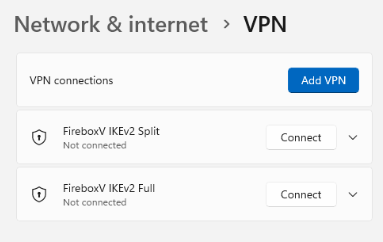
By default, Windows IKEv2 connections use a Full tunnel, but you can switch to Split tunnel manually with PowerShell commands.
On the Windows workstation
To enable Split tunneling manually for your IKEv2 VPN connection:
– Set-VpnConnection “WG IKEv2” -SplitTunneling $true
– Add-VpnConnectionRoute “WG IKEv2” 192.168.10.0/24
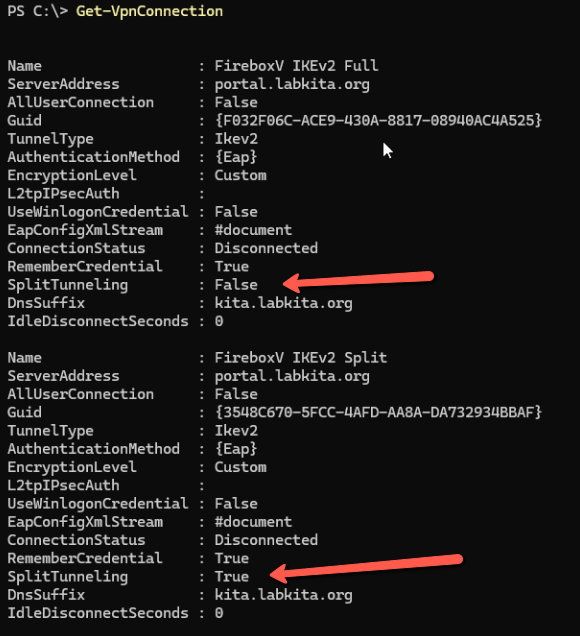
You can check the current tunnel mode with: Get-VpnConnection
If SplitTunneling shows True, the connection is in Split mode; if False, it’s Full tunnel.
On the Firebox
Starting with Firebox v12.9, you can enable Split tunnel configuration in the Firebox IKEv2 setup. When you download the IKEv2 config from the Firebox it automatically includes the -SplitTunneling option and route definitions like: -DestinationPrefix ‘192.168.110.0/24’
Using both Full and Split tunnels
If you need both connection types:
- Configure the Firebox for Split tunnel first and download the IKEv2 Split configuration.
- Then switch the Firebox to Full tunnel mode and download the IKEv2 Full configuration.
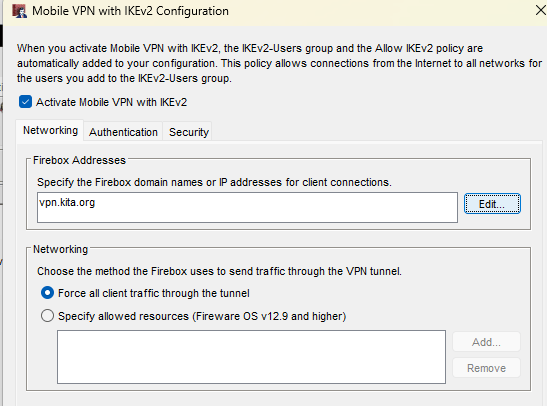
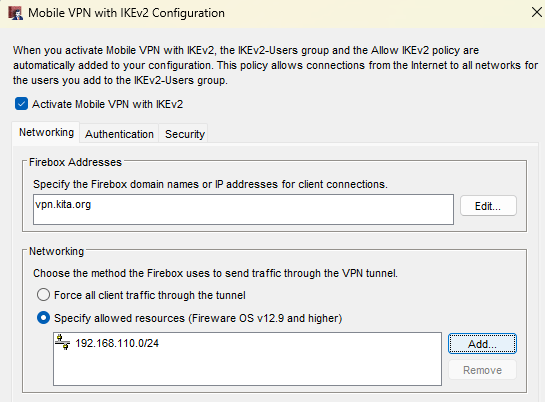
The Firebox must have Full tunnel mode enabled so that Full tunnel IKEv2 clients can connect out the internet through the Firebox, but workstations can use either Full or Split configurations.
Advanced option
If you’re comfortable editing scripts, you can freely modify the PowerShell file (AddVPN.ps1) created by the Firebox to customize routes or tunnel behavior.
Check Microsoft VpnClient Modules and commands.