You can still update your Firebox device even if the license has expired. Just follow these simple steps.
Get your computer ready
- Install the newest WatchGuard System Manager (WSM).
- Install the newest *.exe firmware file for your Firebox model.
Open your Firebox settings
- Open your existing Firebox configuration file (*.xml file) in Policy Manager.
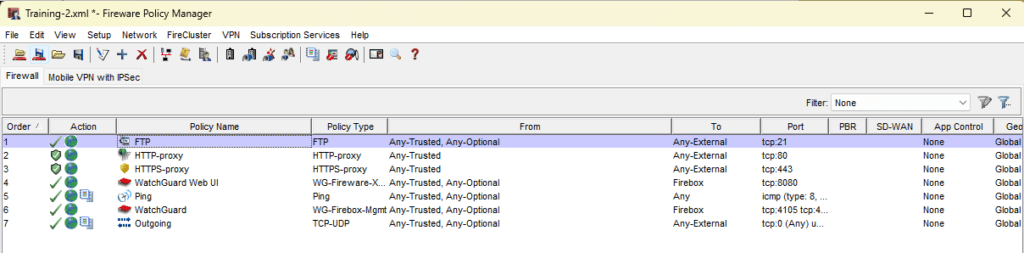
Connect your computer to the Firebox
- Change your computer’s IP address to example: 10.0.1.11 Subnet mask: 255.255.255.0
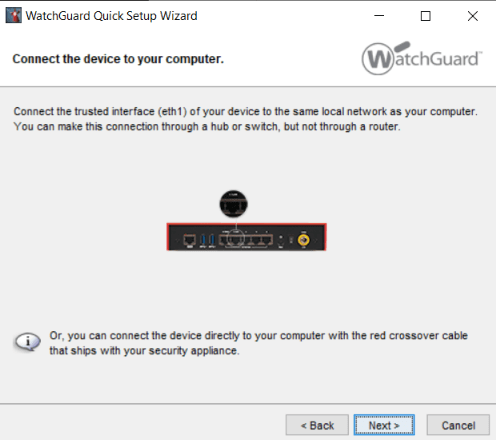
- Plug an Ethernet cable from your computer into the Eth1 port on the Firebox.
- (Optional) You can keep a window open that continuously pings the Firebox: ping 10.0.1.1 -t This helps you see when the device is ready.
Start the setup wizard
- Open WSM Quick Setup Wizard.
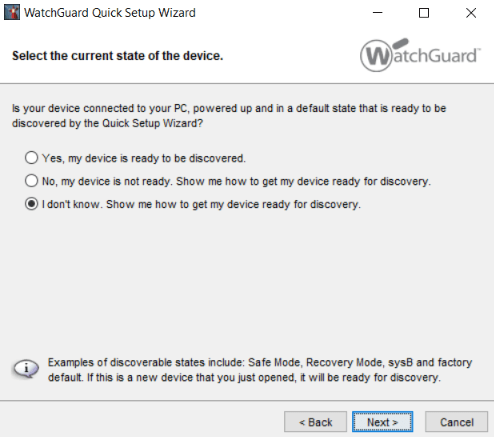
- Choose: “I don’t know, show me how to get my device ready for discovery.”
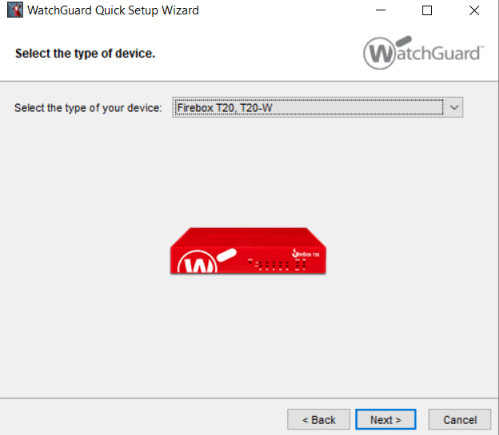
- Select your Firebox model.
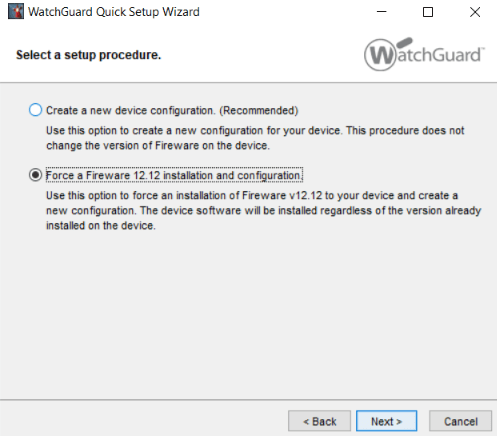
- Choose: “Force a Fireware OS 12.x installation and configuration.”
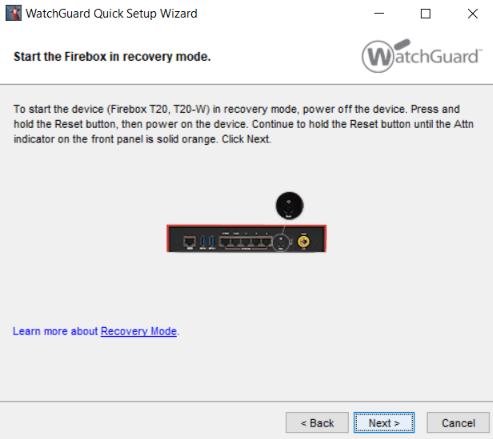
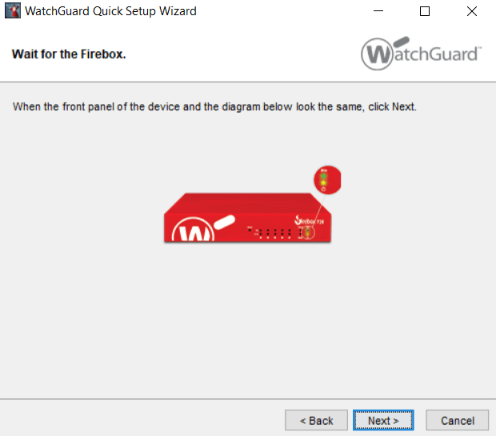
- Follow the on‑screen instructions to reset the Firebox.
- When your ping window starts showing replies from 10.0.1.1, the Firebox is now in Recovery Mode.
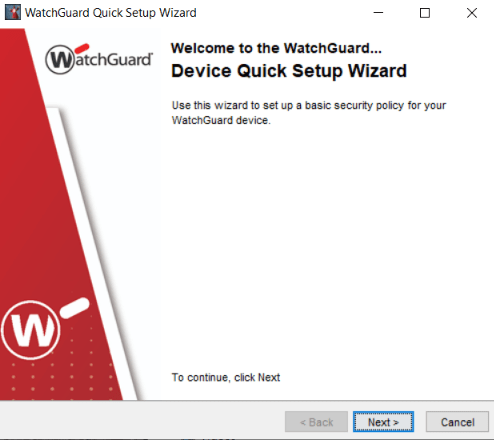
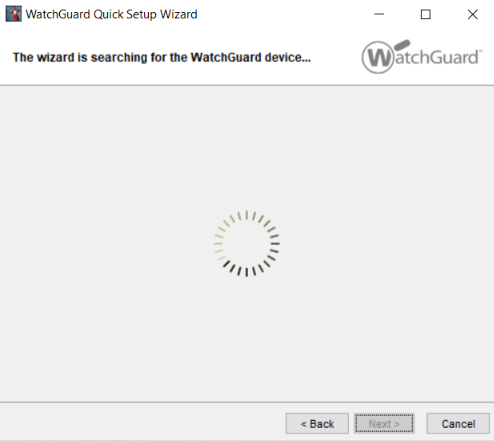
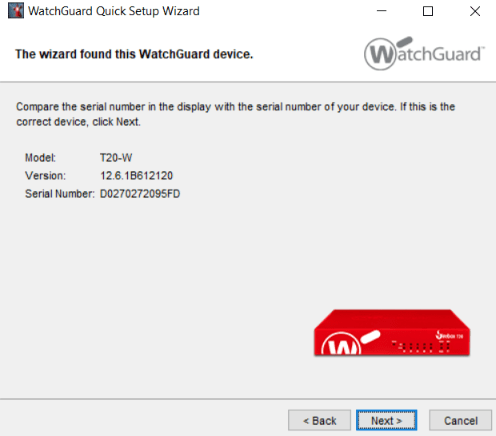
Install the firmware
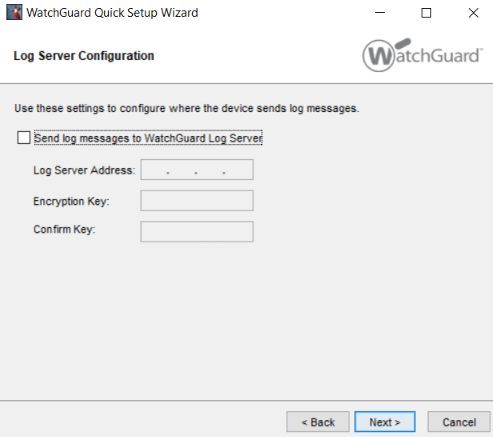
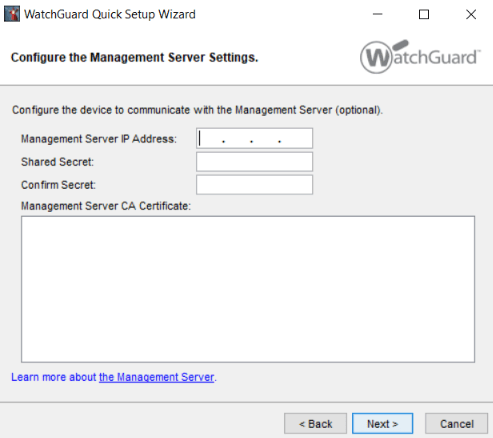
- Accept the default settings the wizard suggests.
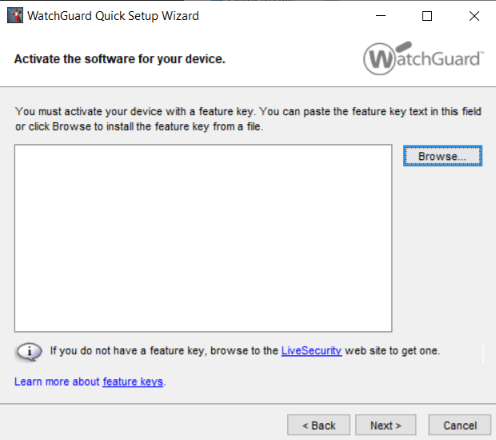
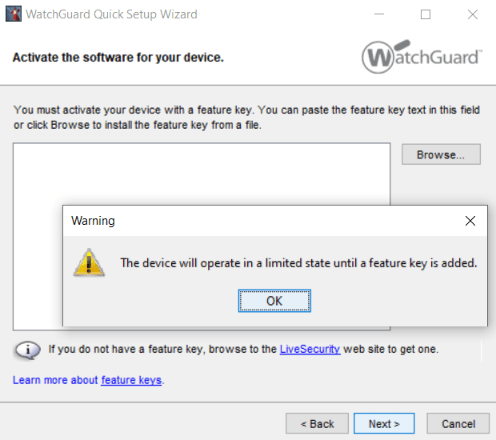
- When asked for a feature key, leave it blank.
- Enter your Status and Admin passwords.
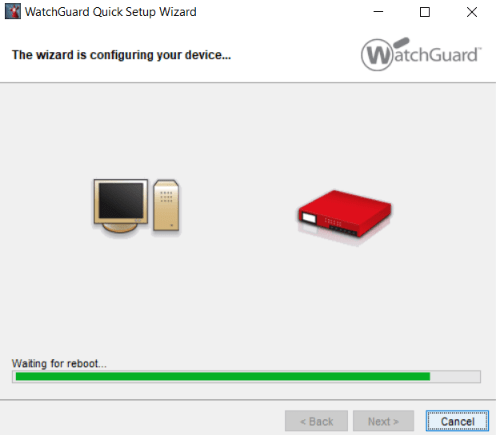
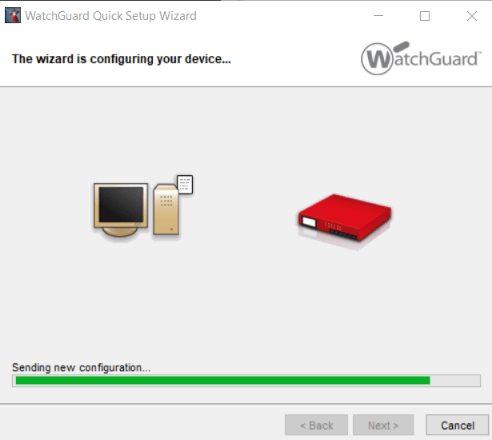
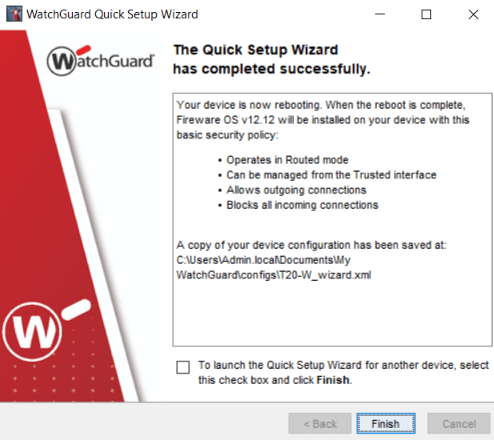
- Let the wizard finish the installation.
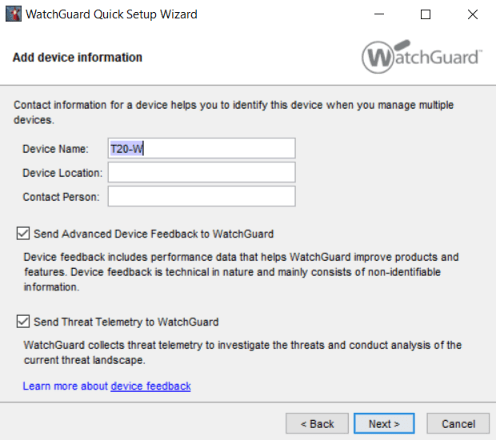
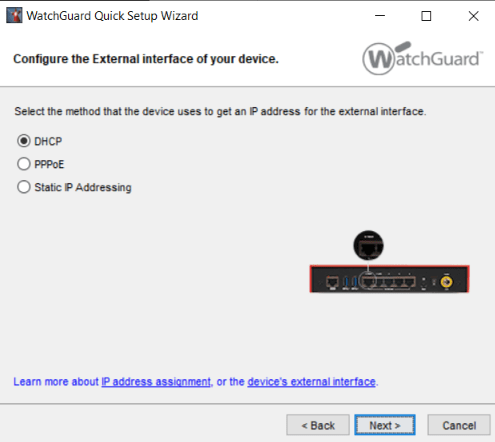
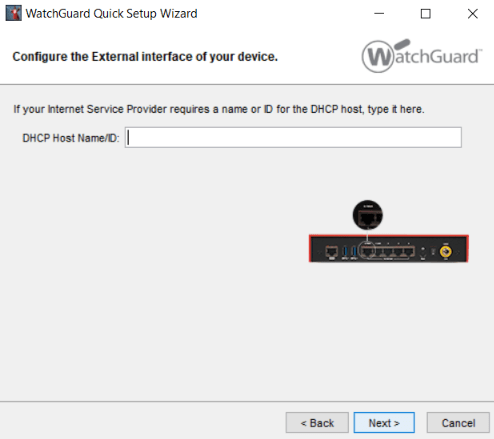
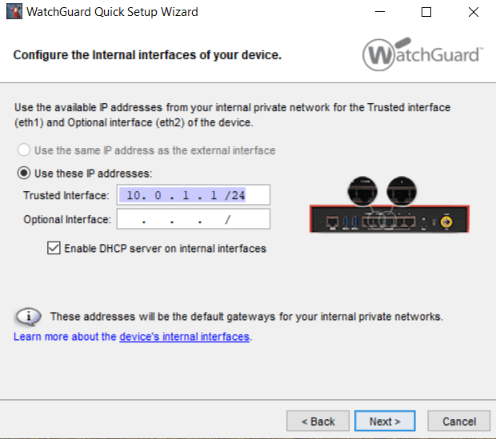
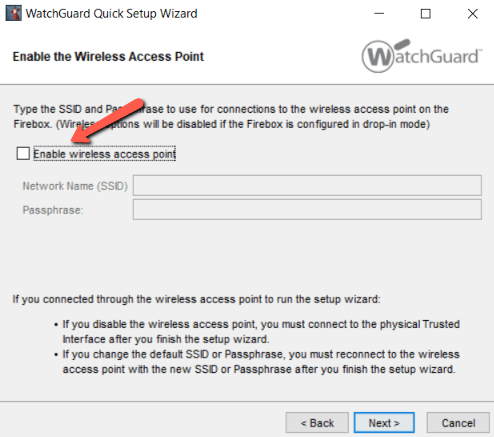
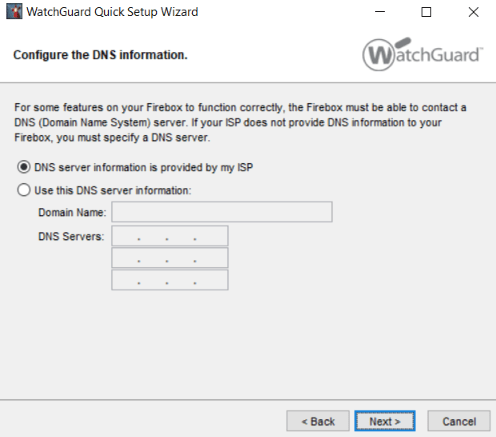
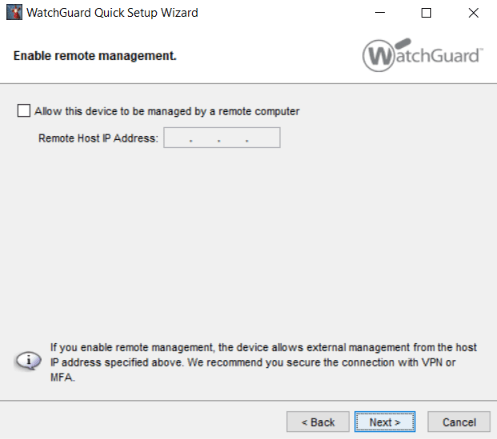
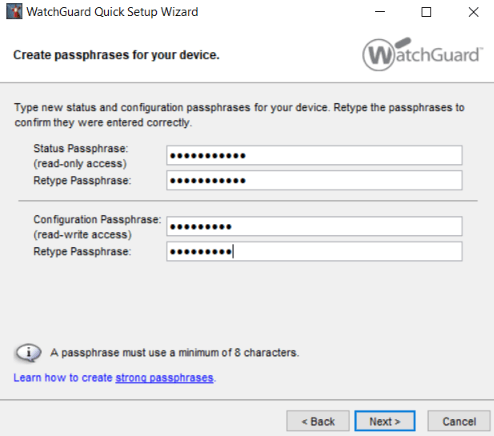
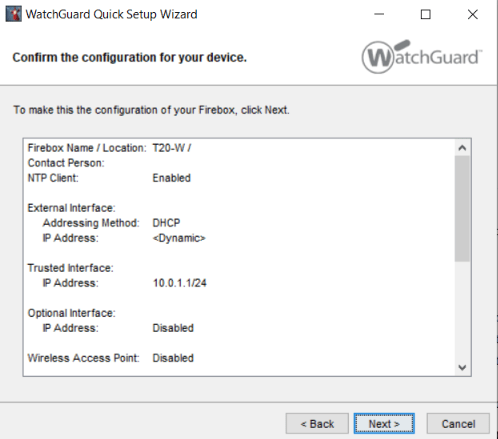
The Firebox will reboot twice:
- After installing the firmware
- After saving the new configuration
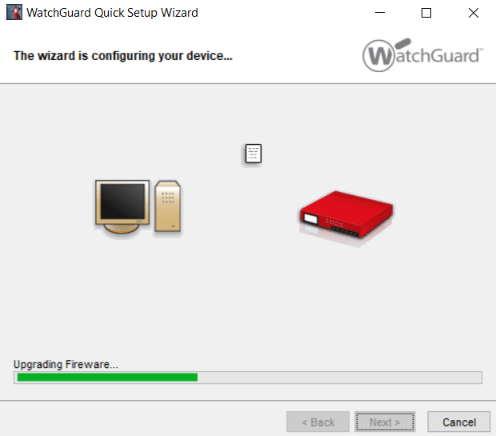
Restore your configuration
- When the Firebox starts replying to ping again, go back to the Policy Manager window you opened earlier.
- Click Save to Firebox.
- Use:
- IP address: 10.0.1.1
- Admin password you created in the wizard
8. Finish up
- Change your computer’s IP address back to normal.
- Reconnect your cables as they were before.
Your Firebox is now running the latest firmware with your original configuration settings restored.