Modern firewalls can inspect encrypted HTTPS traffic to provide deeper security, better visibility, and more accurate web filtering. WatchGuard Firebox offers two ways to use the HTTPS Proxy:
- Without Content Inspection — simple domain‑level filtering using WebBlocker
- With Content Inspection — full decryption and scanning using all UTM security services
This guide explains both modes, how they work, when to use them, and how to deploy certificates for HTTPS inspection.
Understanding HTTP Proxy vs. HTTPS Proxy
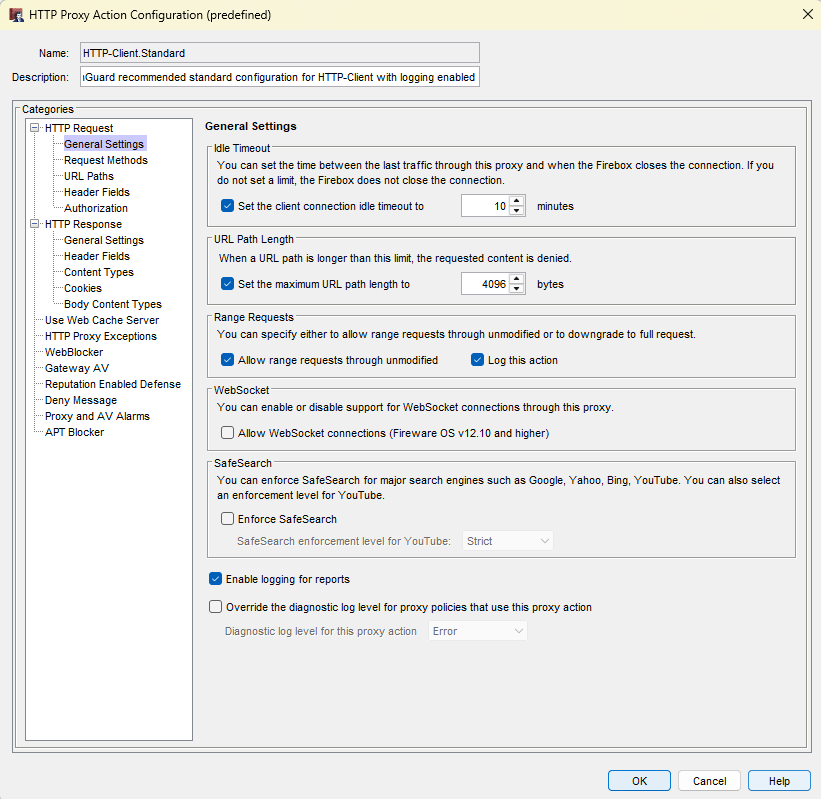
HTTP Proxy
The HTTP Proxy defines what checks the firewall performs on general web‑browsing traffic — both HTTP and HTTPS.
HTTPS Proxy
The HTTPS Proxy determines which HTTPS sites are inspected and which HTTPS connections are exempted.
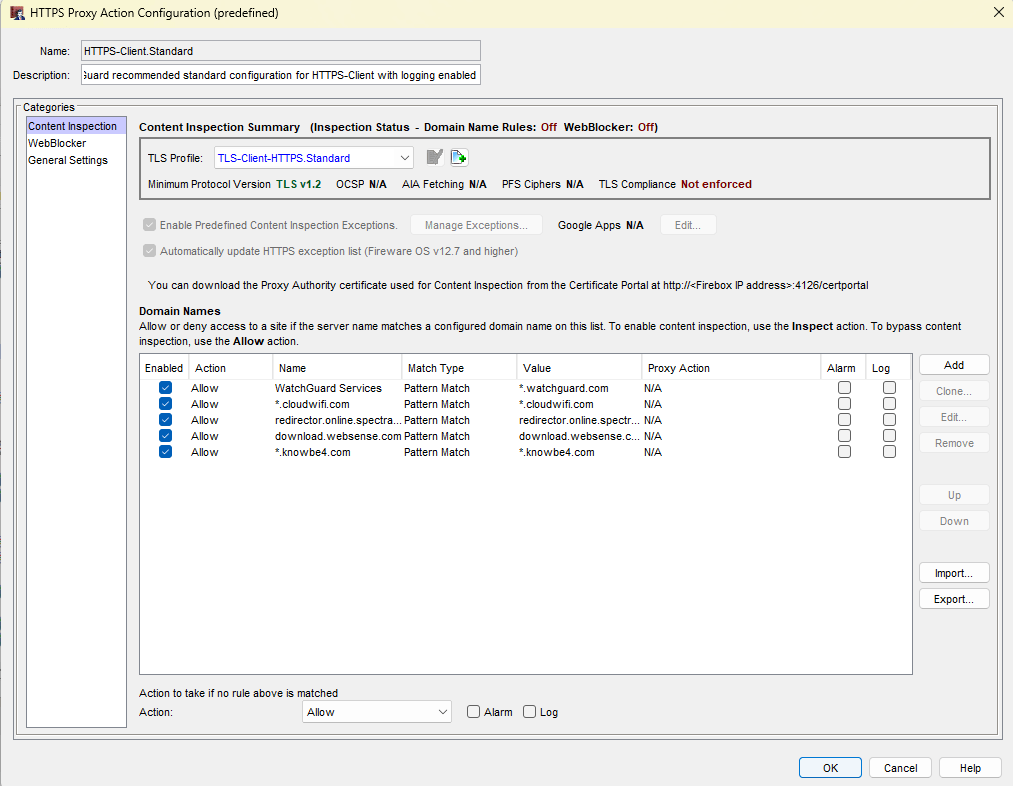
HTTPS Proxy Without Content Inspection
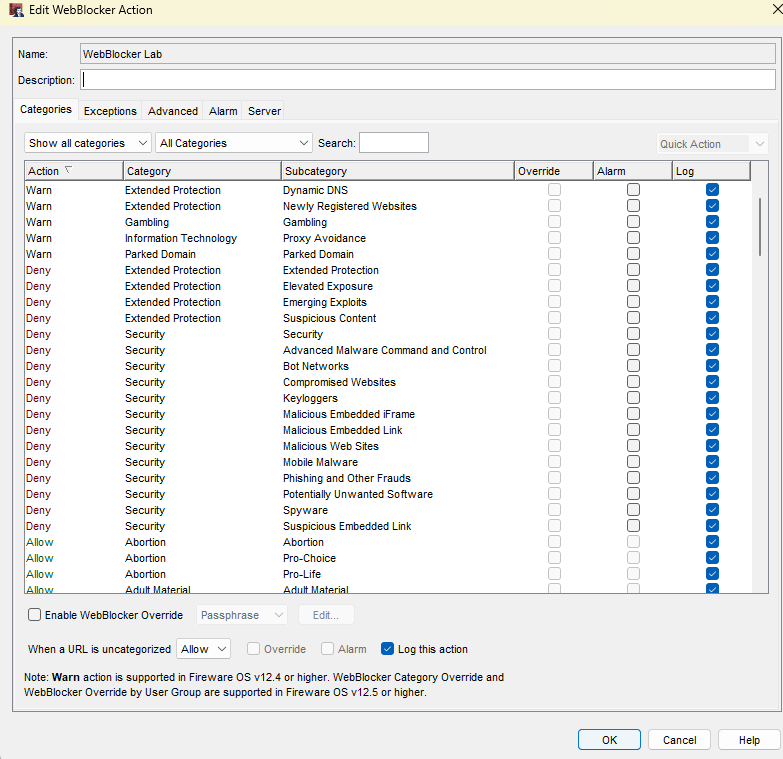
When Content Inspection is disabled, you only need to attach a WebBlocker profile to the HTTPS Proxy action. This setup requires no workstation configuration and no certificate installation.
✔️ What you get
- Domain‑level visibility (SNI, certificate CN, server domain info)
- Basic category filtering via WebBlocker
⚠️ Limitations
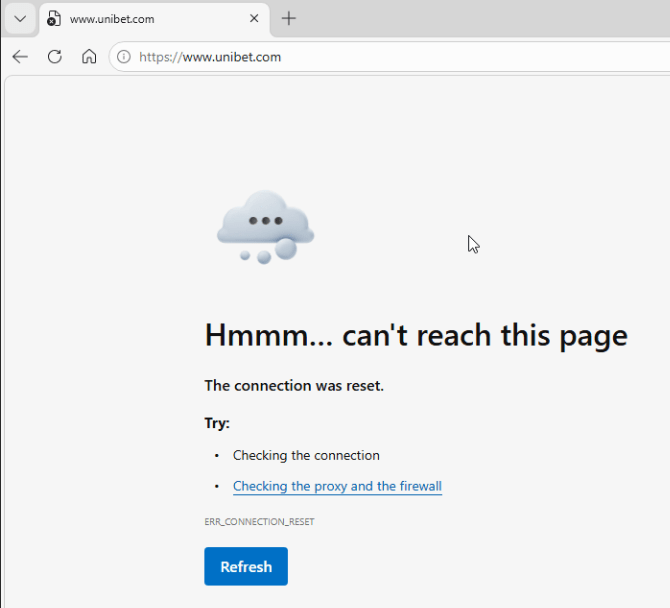
- WebBlocker cannot see the full URL — only the certificate information
- The firewall cannot display a block message when a page is blocked
This mode is ideal when you want lightweight filtering without touching client devices.
HTTPS Proxy With Content Inspection
This is the recommended configuration. When enabled, the firewall decrypts HTTPS traffic, inspects it using all UTM services, and re‑encrypts it before sending it to the client.
✔️ How to enable it
You can turn on Content Inspection in two ways:
Directly in the HTTPS Proxy policy Content Inspection settings
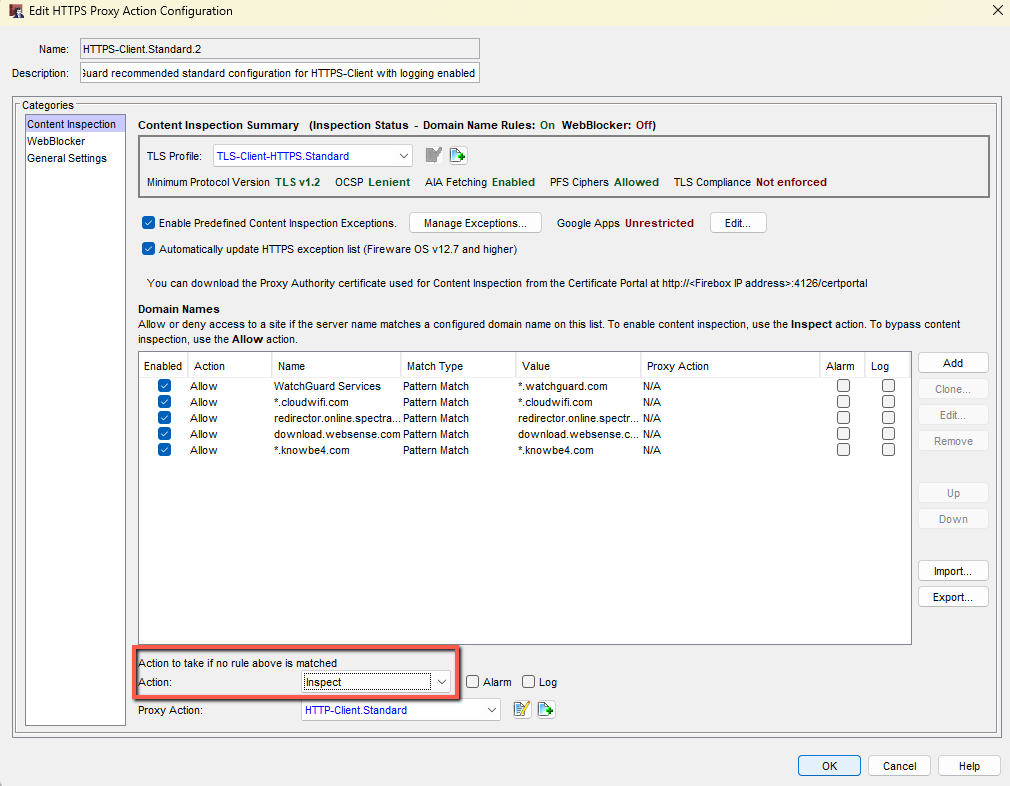
The recommended way, HTTPS Proxy / WebBlocker settings and by setting all categories to Inspect and enabling “Inspect when a URL is uncategorized“
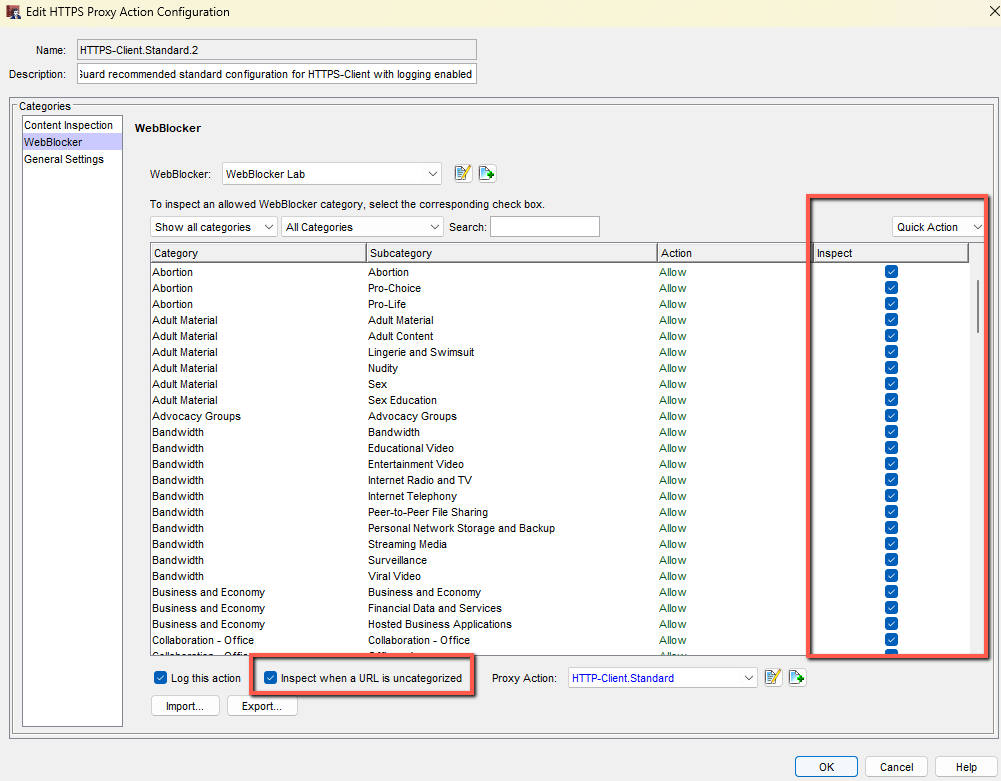
When enabling inspection through WebBlocker settings, leave Content Inspection → Action = Allow (default).
✔️ What you get
- Full UTM scanning (IPS, AV, APT Blocker, DLP, App Control, etc.)
- Full URL visibility
- Ability to show block pages
- Stronger security posture
⚠️ Requirements
Content Inspection requires certificate deployment to client devices.
Certificate Deployment for HTTPS Inspection
When Content Inspection is enabled, the firewall becomes a man‑in‑the‑middle: the client connects to the firewall, and the firewall opens a new HTTPS connection to the destination site.
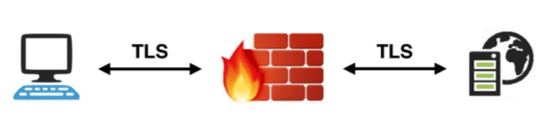
Because of this, clients must trust the firewall’s signing certificate.
Two deployment options
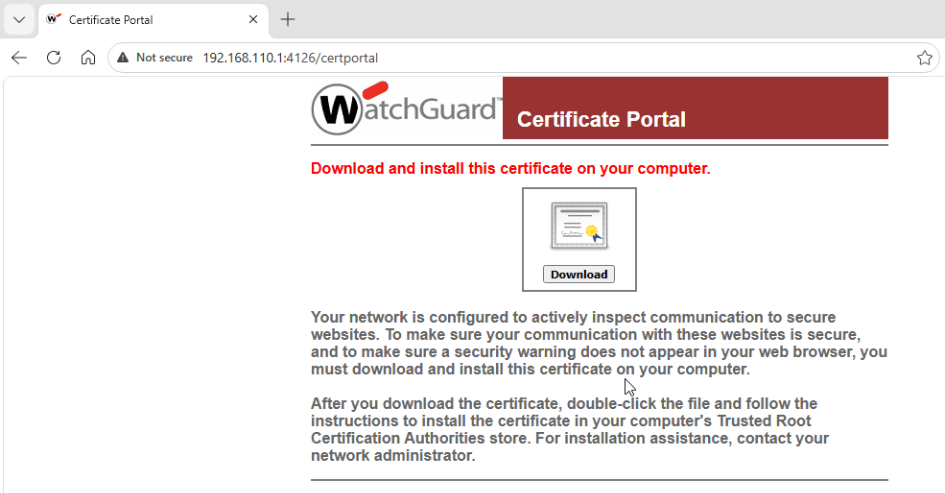
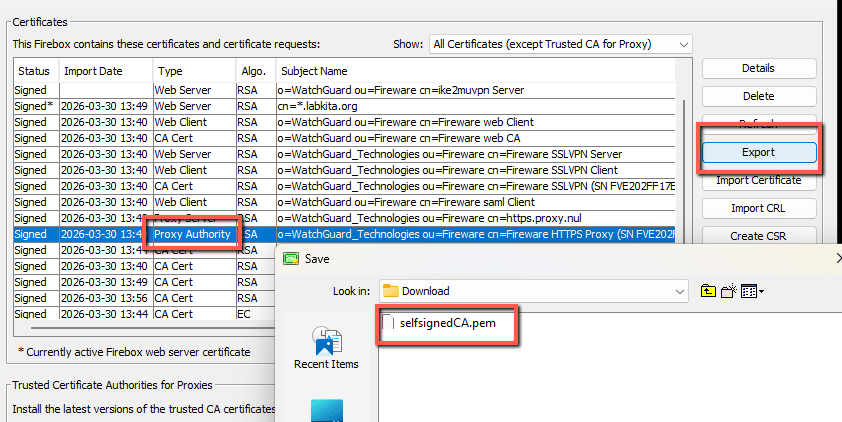
Option A — Use Firebox’s built‑in Proxy Authority certificate
- Export the Proxy Authority Root CA
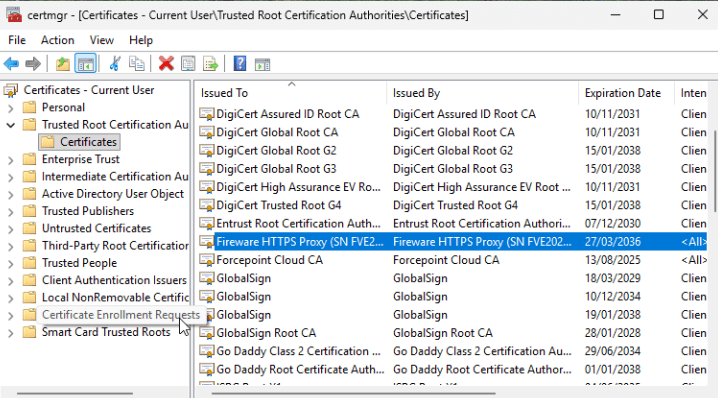
- Install it on all workstations
Option B — Use an AD‑signed subordinate CA (recommended for enterprises)
- Create a new HTTPS Proxy Authority certificate
- Sign it using AD Certificate Services
- Import the AD Root CA and the signed Proxy Authority certificate into the firewall
- No workstation installation needed (AD clients already trust the CA)
Deployment methods
- Manual installation via certmgr.msc
- Automated deployment via GPO or Intune
Firefox note
Firefox uses its own certificate store unless: security.enterprise_roots.enabled = true
Handling Sites That Break Under Inspection
Some websites do not work with HTTPS inspection. These can be excluded in two ways:
A. Domain‑based exceptions
Add domains to: HTTPS Proxy → Action → Content Inspection → Domain Names
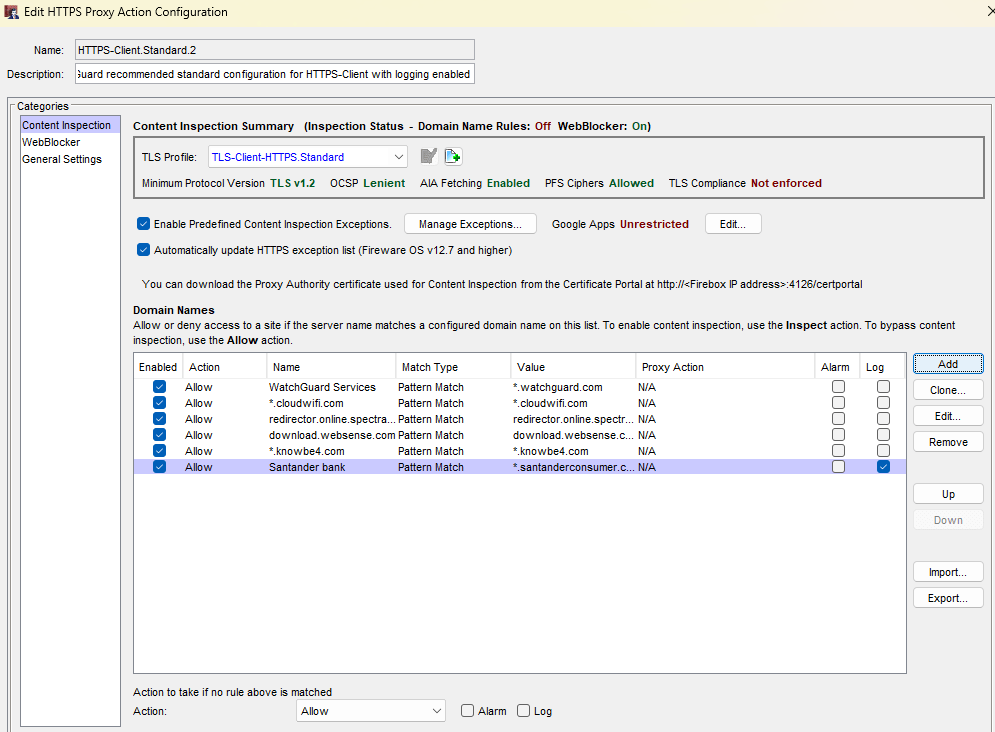
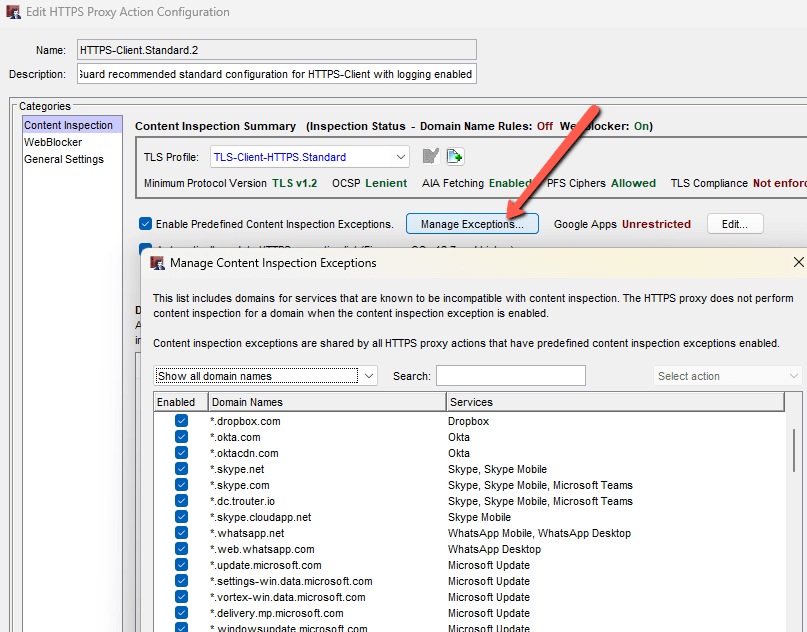
Most exceptions are already handled by WatchGuard’s Managed Exceptions list.
B. Category‑based exceptions (WebBlocker method)
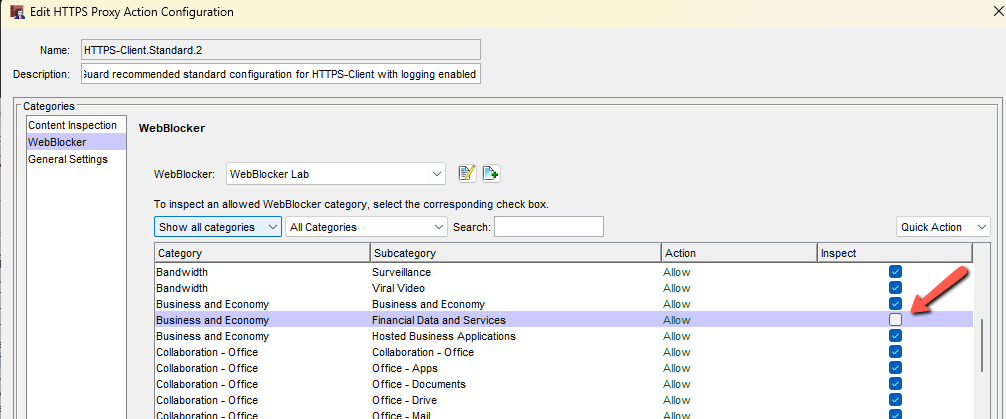
If you enabled inspection via WebBlocker, you can disable inspection for entire categories. Example: To bypass banking sites, remove the Inspect checkbox from Business and Economy → Financial Data and Services.
Deny HTTP/2 (QUIC) protocol traffic.
Some web browsers (like Chrome, Edge, Firefox) can use a newer protocol called QUIC.
QUIC sends traffic over UDP port 443 instead of the normal HTTPS TCP port 443.
Your WatchGuard firewall cannot inspect QUIC, so users could bypass:
- WebBlocker
- SafeSearch
- HTTPS inspection
- Other security controls
This means QUIC can let users reach sites your policy normally blocks.
Check How to prevent connections from browsers that bypass WebBlocker and SafeSearch restrictions with QUIC protocol?
You have three ways to block QUIC:
1. Block UDP port 443 on the firewall
If you deny outbound UDP/443, browsers automatically fall back to normal HTTPS.
This restores all your security controls.

2. Use Application Control to block QUIC
You can enable App Control and set QUIC = Deny.
This also forces browsers to stop using QUIC.
3. Turn off QUIC in the browser
You can disable QUIC/HTTP3 in Chrome, Edge, Firefox, etc.
This is optional if the firewall already blocks UDP/443.
QUIC bypasses your security because it uses UDP/443, so blocking UDP/443 or denying QUIC forces browsers back to normal HTTPS where your security rules work.