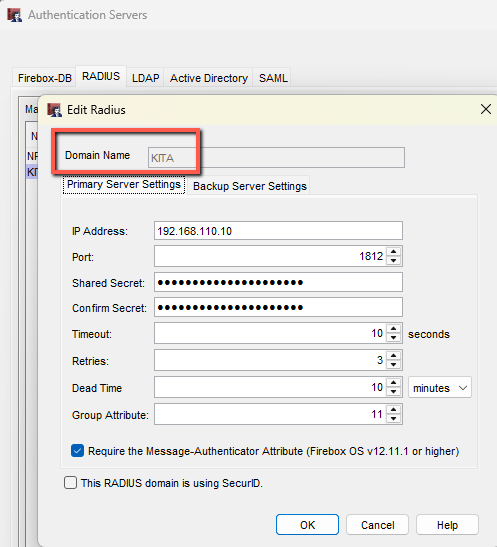
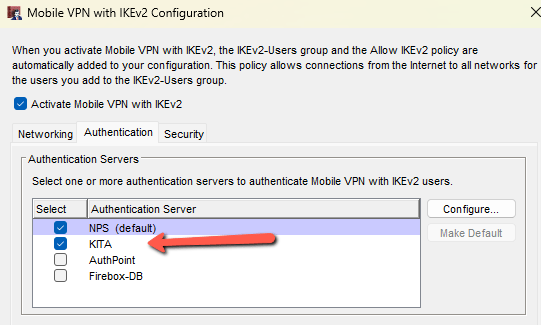
When the Windows IKEv2 VPN client uses automatic logon, it sends credentials as DOMAIN\username. The Firebox matches the DOMAIN part with the RADIUS server name. If the names don’t match (for example, lowercase or different spelling), authentication fails.
Windows VPN Client Configuration
- Open VPN Settings
- Go to Settings → Network & Internet → VPN.
- Select your IKEv2 VPN profile.
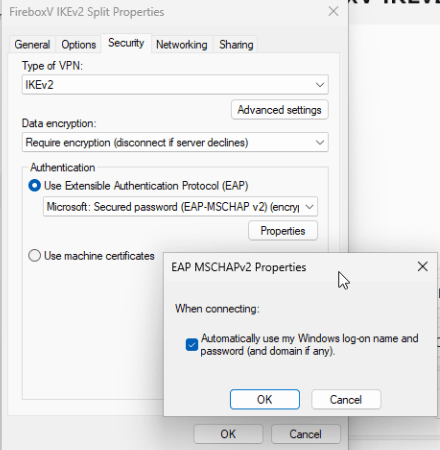
- Click Advanced options → More VPN properties → Edit.
- Enable Automatic Logon
- Under Security → Authentication Properties, check “Automatically use my Windows log-on name and password (and domain if any)”.
Firebox Configuration
- RADIUS Server Setup
- In Authentication Servers → RADIUS, set the RADIUS name to match your on-prem AD NetBIOS domain name — in CAPITAL letters. Example:
- AD domain: kita.local
- NetBIOS name: KITA
- Firebox RADIUS name: KITA
- In Authentication Servers → RADIUS, set the RADIUS name to match your on-prem AD NetBIOS domain name — in CAPITAL letters. Example:
- Add RADIUS to IKEv2 Authentication
- In VPN → Mobile VPN with IKEv2 → Authentication, add the RADIUS server you just configured.
- It doesn’t need to be the default authentication server — just listed.