This guide has three parts. It explains how to install and configure Firebox SSLVPN and IKEv2 with AuthPoint MFA with local users, on prem AD users and Entra ID users.
- Part 1 – Local User Authentication
- Part 2 – on prem Active Directory User Authentication
- Part 3 – Entra ID User Authentication
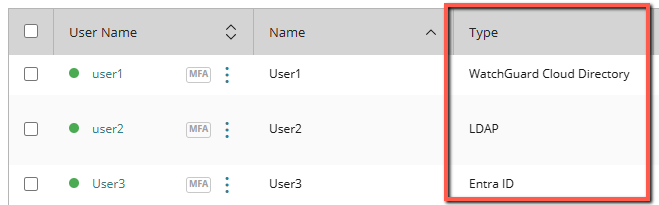
Part 1 – Local User authentication
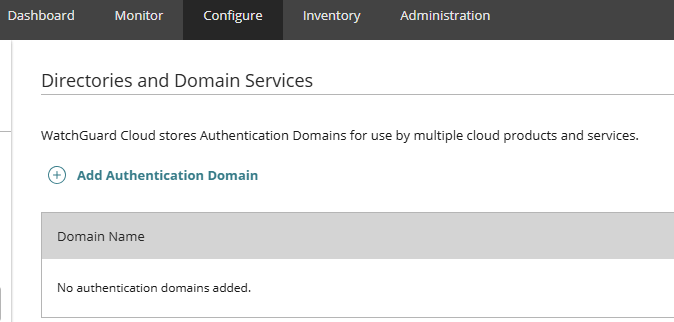
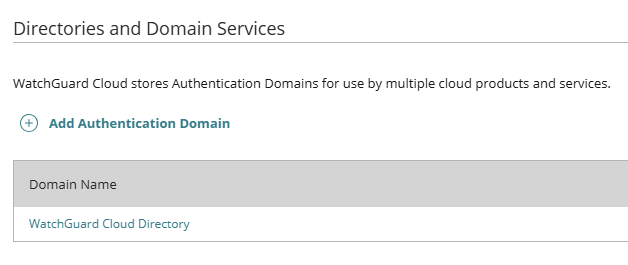
In WatchGuard Cloud, go to Configure > Directories and Domain Services
Click Add Authentication Domain.
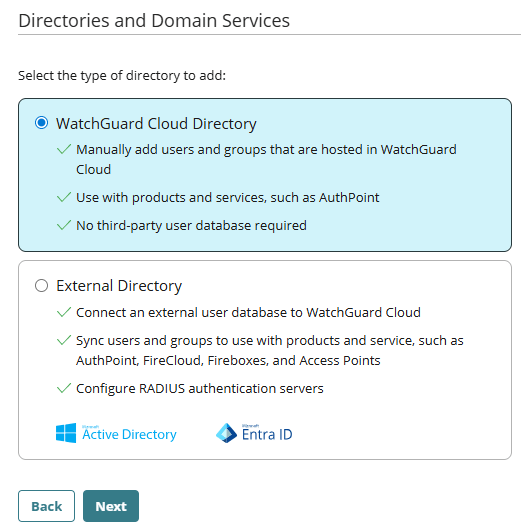
Choose WatchGuard Cloud Directory, then click Next.
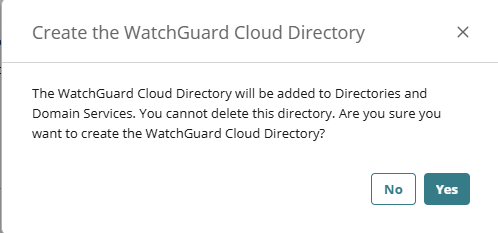
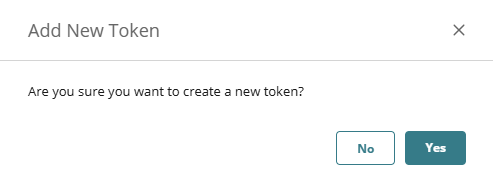
Confirm that you want to create the directory.
Create a Group
AuthPoint uses groups to control which resources users can access. You must create at least one group before adding users.
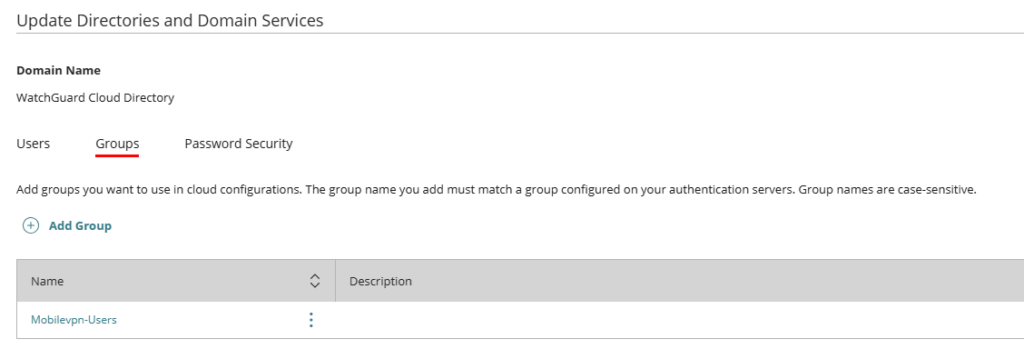
- On the Directories and Domain Services page, click your WatchGuard Cloud Directory.
- Open the Groups tab.
- Click Add Group.
- Enter a Group Name and click Save.
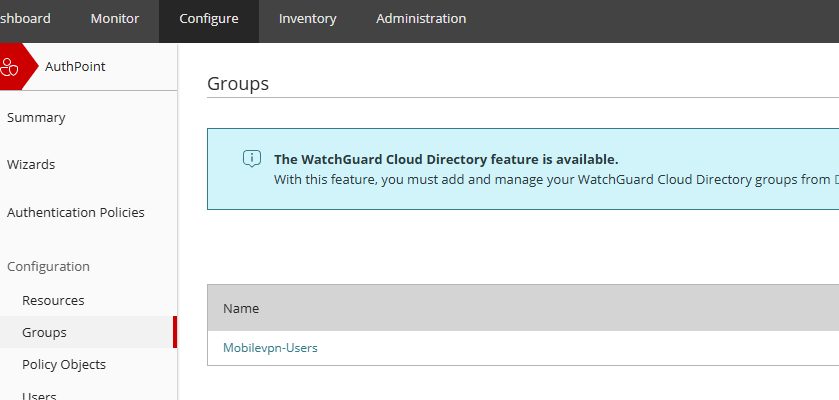
- The group now appears in both the Cloud Directory and AuthPoint.
Important:
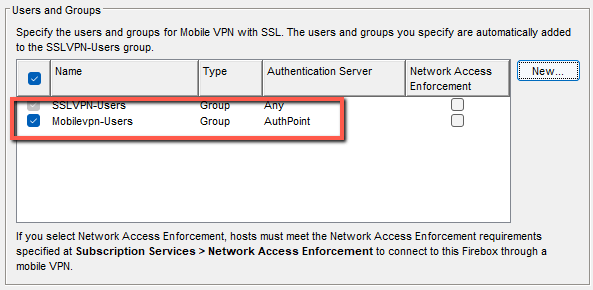
- The Group name must match exactly the group name configured in the Firebox SSLVPN and IKEv2 authentication settings
- It is case‑sensitive
- Default Firebox group name is SSLVPN-User and IKEv2-Users
Add a Local User
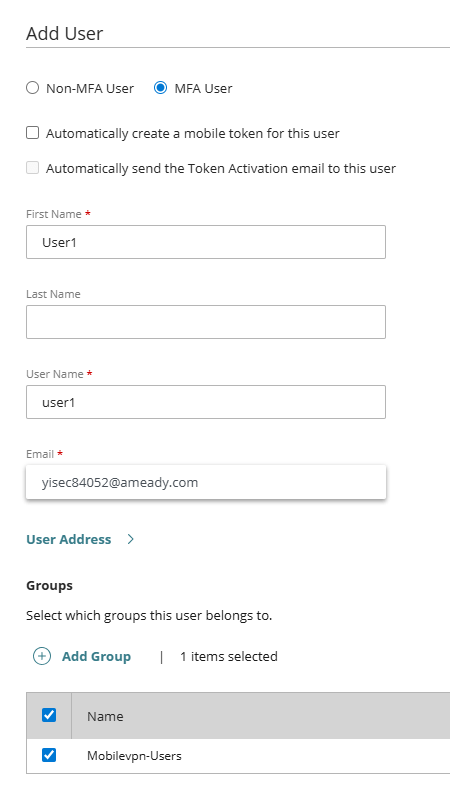
- In the Users tab, click Add User
- Choose whether the user is:
o MFA user (uses AuthPoint for authentication)
o Non MFA user (password only; does not use a license) - If you do not want AuthPoint to automatically create a mobile token or send an activation email, clear those checkboxes.
- Enter the user details. Required fields:
o First Name
o User Name
o Email - Select the group(s) the user belongs to.
o AuthPoint users must be in at least one group. - Click Save.
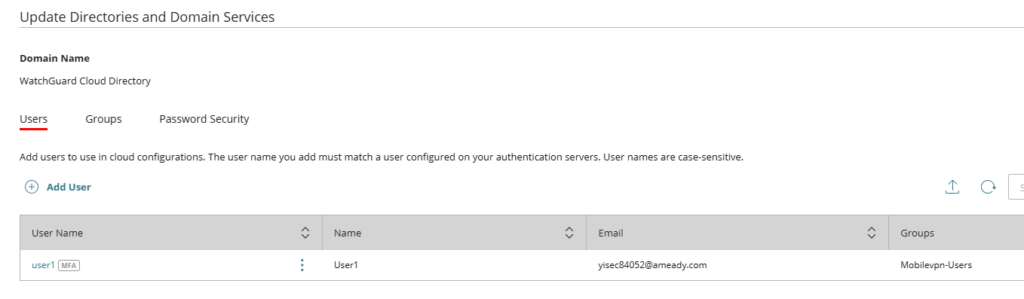
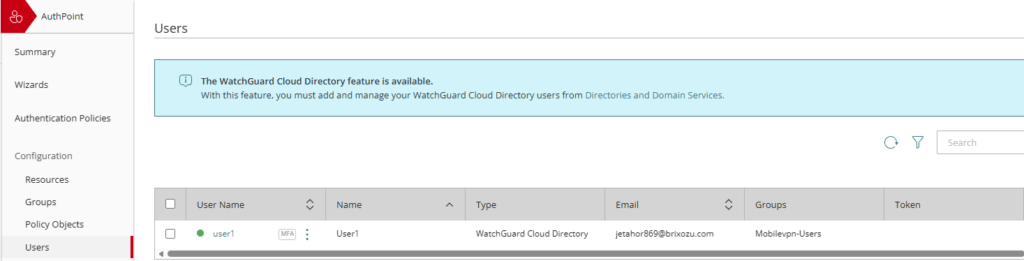
The User is now also added to the AuthPoint configuration.
The user also now receives an email message to set their AuthPoint user password.
Open the Set Password email sent to the users email account. Click the link in the email to set your password.
If you left the default Automatically create a mobile token for this user enabled the user also
receives email messages to activate a token in the AuthPoint mobile app.
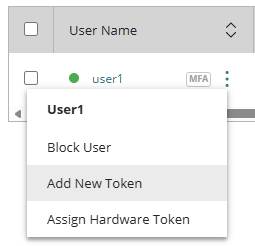
If you cleared the Automatically create a mobile token for this user, go to the AuthPoint Users list
choose the user and click the three dots menu and select Add New Token.
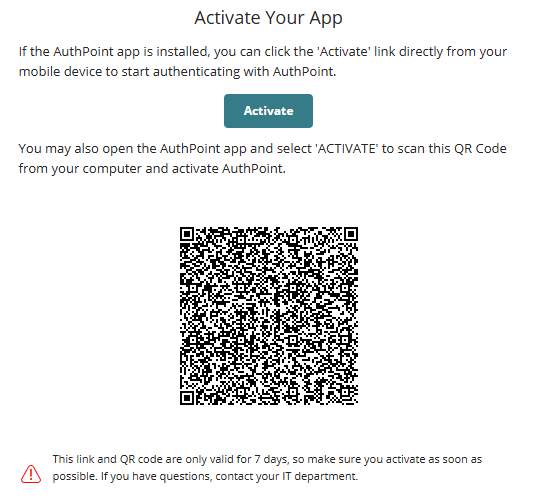
Open the Activation email and click the link in the email. This takes you to the Welcome to AuthPoint web page. If you have not done so, download and install the AuthPoint mobile app on your phone from Apple App Store or Google Play Store.
- If you opened the web page on your phone, tap the Activate button. This opens the AuthPoint app and activates your token.
- If you opened the web page on your computer, open the AuthPoint app on your phone and tap Activate in the app, then point the camera on your phone at the QR code on your computer screen.
You can see the token on the AuthPoint Users page.

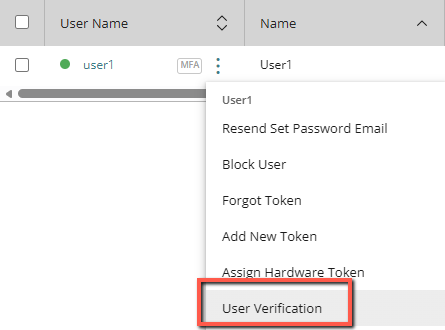
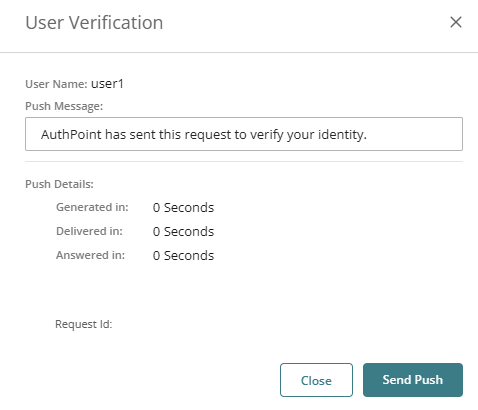
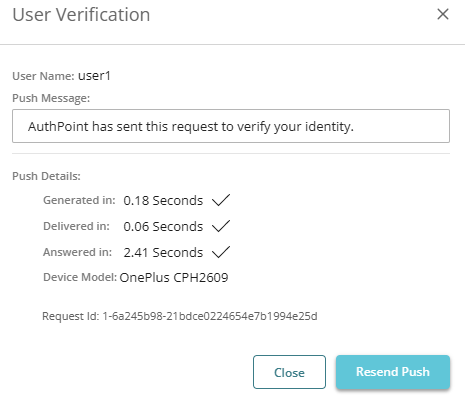
Test that the users get a Push notification to the AuthPoint MFA app.
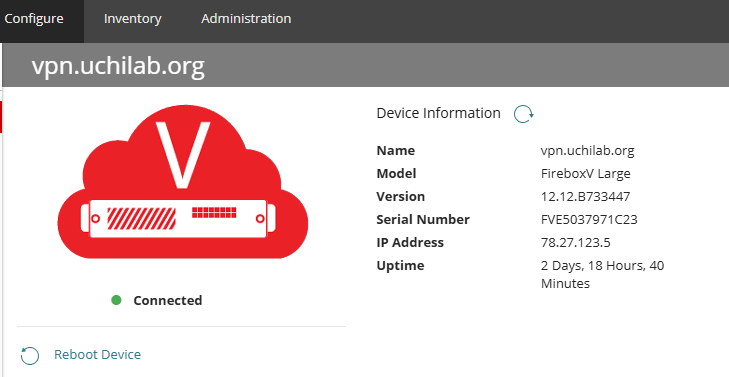
Your Firebox must be connected to WatchGuard Cloud before you continue.
To use AuthPoint as an authentication server on a Firebox running Fireware 12.7 or higher, you must add a Firebox resource in AuthPoint.
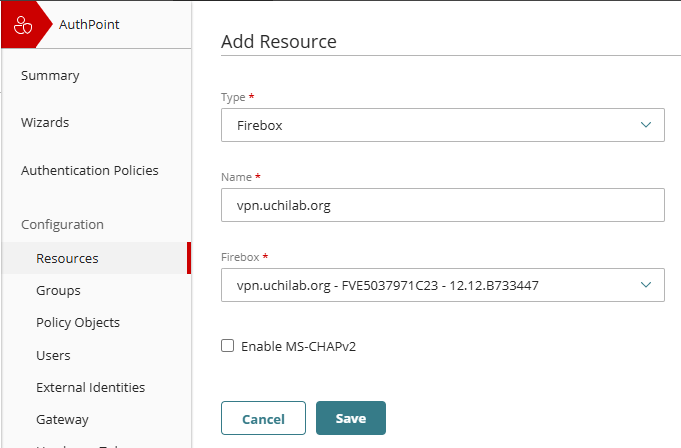
Add a Firebox Resource in AuthPoint
- In WatchGuard Cloud, go to Resources.
- Click Add Resource.
- From the Type list, select Firebox.
- In Name, type a descriptive name for this resource.
- From the Firebox drop‑down list, select the Firebox device you want to connect to AuthPoint.
- You do not need to enable MS‑CHAPv2 for IKEv2 VPN if the user is a local AuthPoint user.
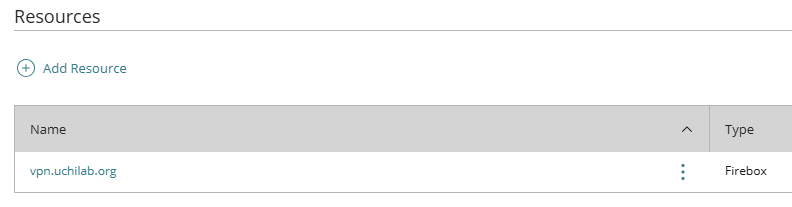
After you add the Firebox resource, the AuthPoint authentication server is automatically enabled on the Firebox.
Configure Zero Trust Authentication Policies
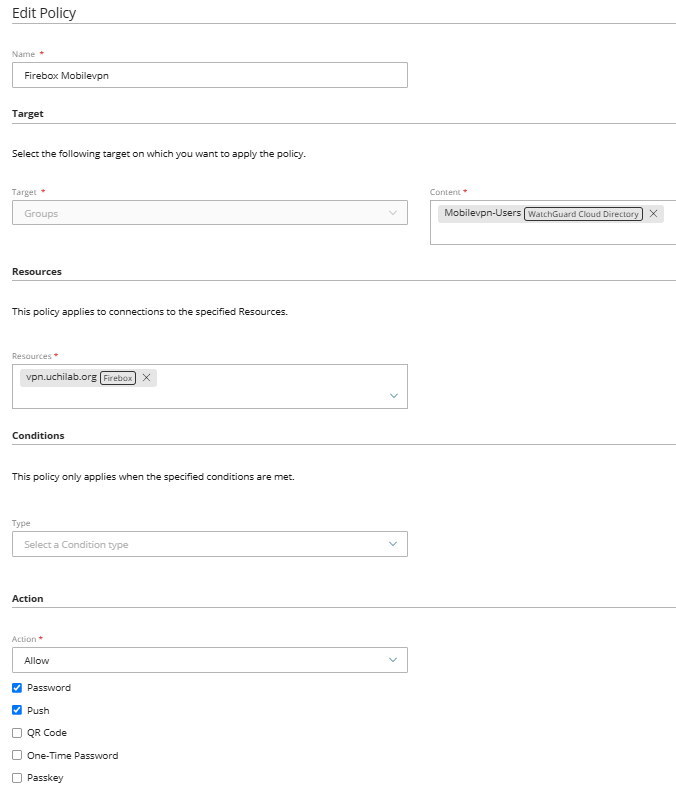
To create an authentication policy:
- Go to WG Cloud > Configure > Zero Trust.
- Click Add Policy.
- Enter a name for the policy.
- In the Target section, choose the groups this policy applies to.
- You can select more than one group.
- In this example, select the Mobilevpn‑User group you created earlier.
- In the Resources section, select the Firebox resource.
- In the Action section, choose Allow.
- Select Password and Push.
- Click Save.

Configure Firebox SSLVPN / IKEv2 to Use AuthPoint
In the Firebox settings for SSLVPN and/or IKEv2, do the following:
- Enable the AuthPoint as Authentication Server.
- Add the AuthPoint group name in the Users and Groups section.
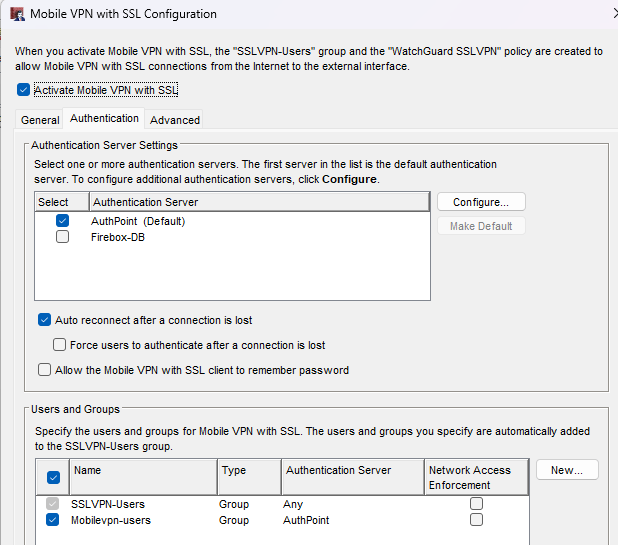
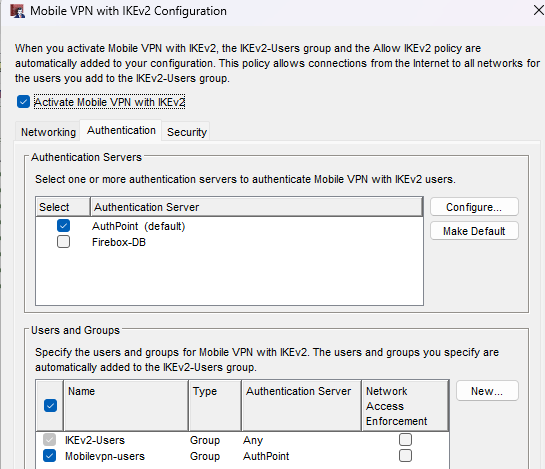
If you have multiple authentication servers and AuthPoint is not the default server, you must log in with: AuthPoint\user1
Final Result
When you connect with SSLVPN or IKEv2, you should receive an MFA Push notification on your mobile device.