LDAP is the preferred method for authenticating SSLVPN users against an on‑premises Active Directory server. However, it is also possible to use a Windows NPS RADIUS server to authenticate AD users.
The configuration is almost the same as when you set up IKEv2 Mobile VPN to authenticate on‑prem AD users. The only differences are:
- the authentication protocol used
- the Filter‑ID settings in the RADIUS policy
Install NPS on a Windows Server
You can install NPS on any Windows Server, including a Domain Controller.
Server Manager
Manage → Add Roles and Features
Select Network Policy and Access Services
PowerShell (Admin):
Install-WindowsFeature NPAS -IncludeManagementTools
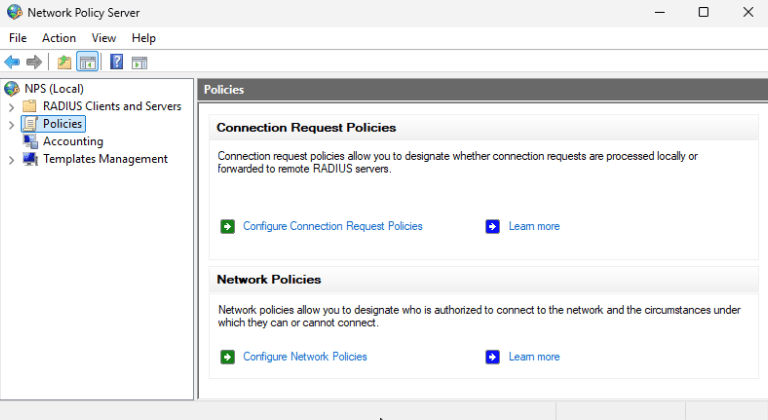
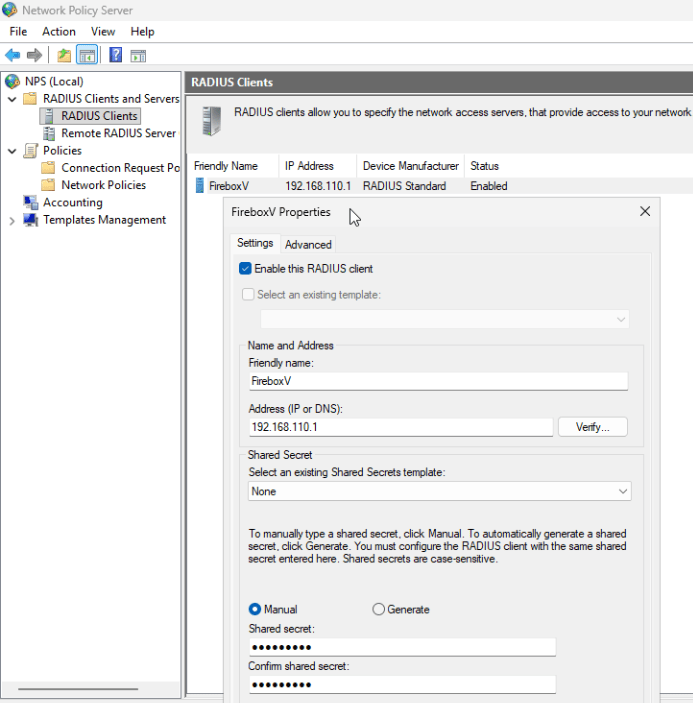
Add the Firebox as a RADIUS Client
In NPS → RADIUS Clients and Servers → RADIUS Clients:
- Friendly name: Firebox name
- Address: (usually the internal IP address of the Firebox that is local to the RADIUS server)
- Shared Secret: Must match what you configure on the Firebox
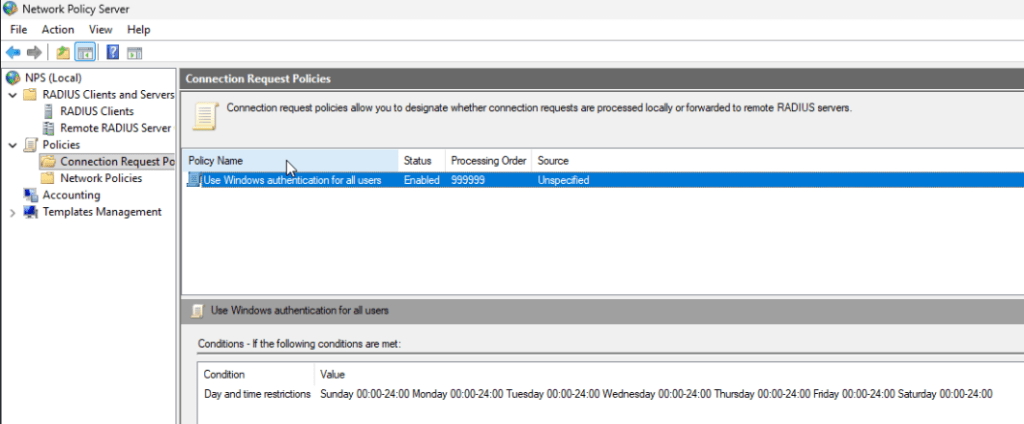
Ensure the Default Connection Request Policy Is Enabled
In Policies → Connection Request Policies, make sure the default policy is active. (You normally don’t need to modify it for SSLVPN.)
Policies → Network Policies → New
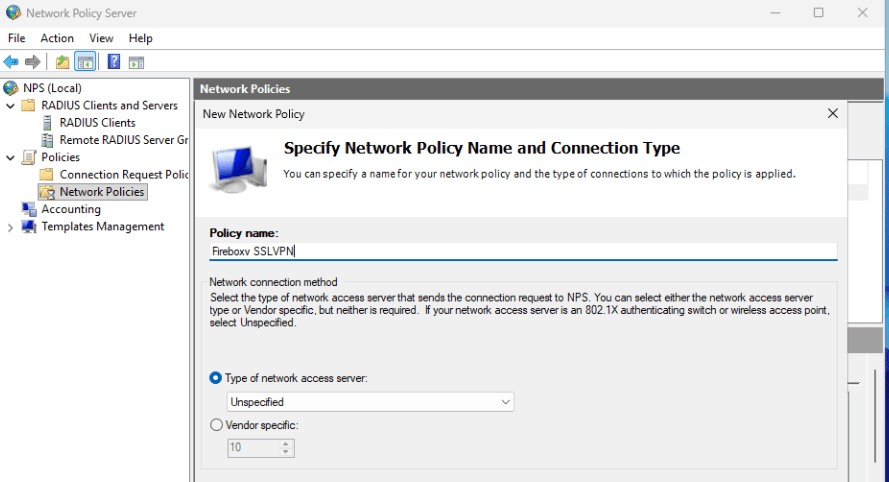
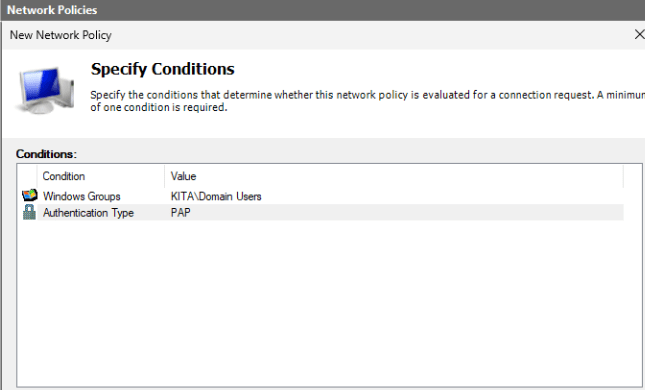
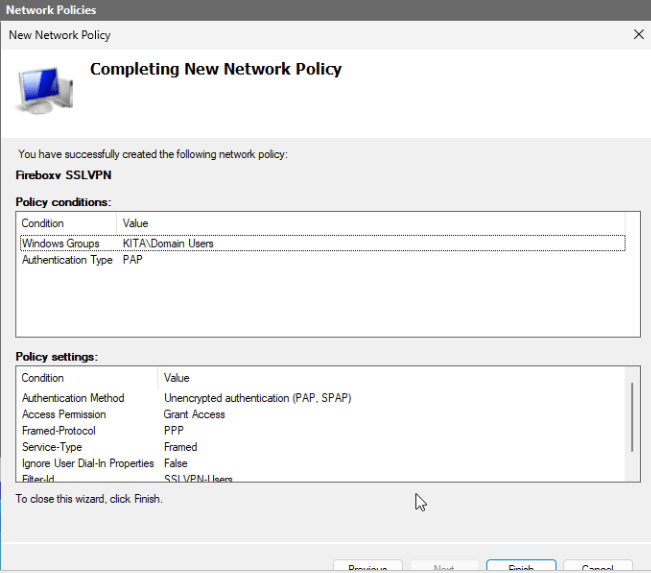
Specify Conditions
- Windows Group: Domain Users (or a specific VPN group)
- Authentication Type: PAP
- You can add more conditions if needed or just add the Win group
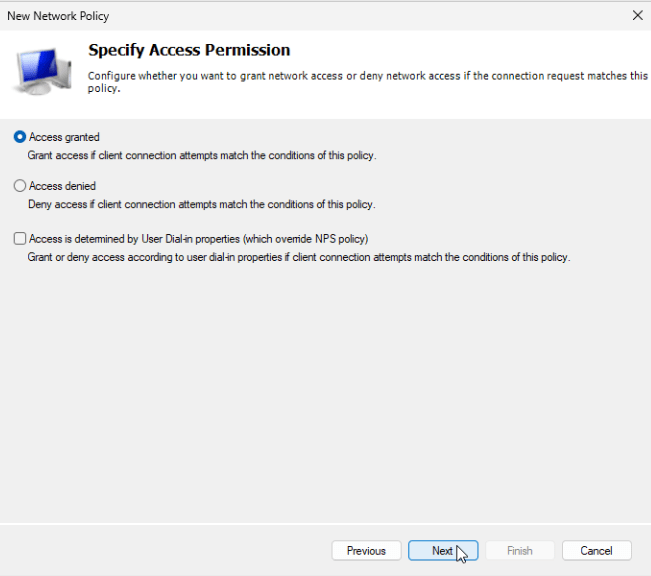
Specify Access Permission
Leave at Access granted (default)
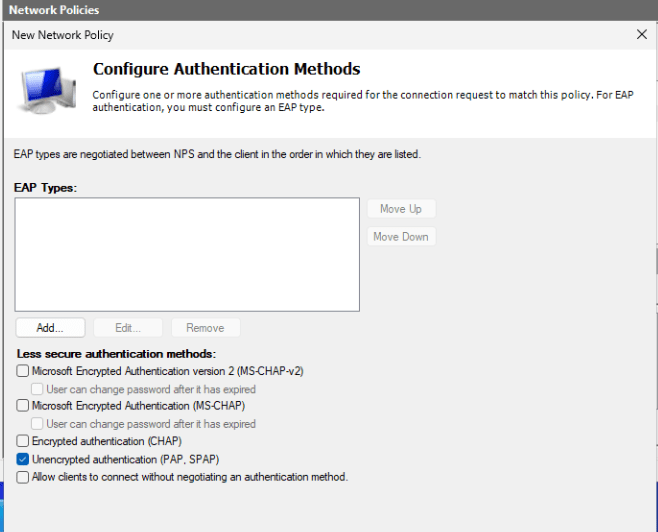
Configure Authentication Methods
Select only Unencrypted authentication (PAP,SPAP)
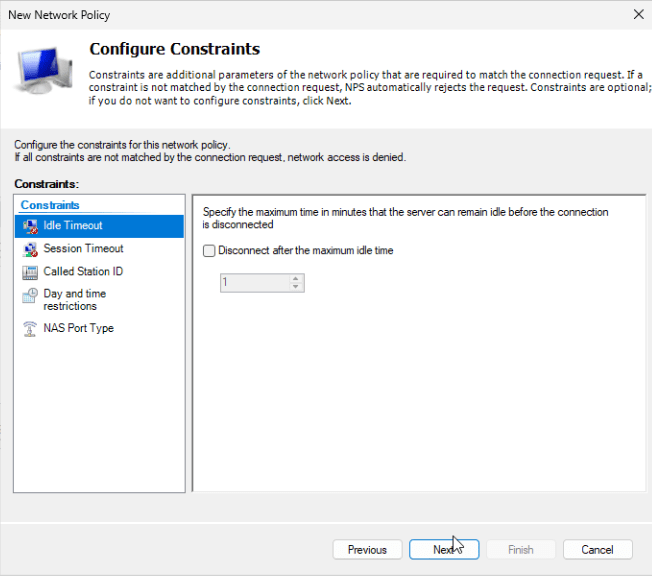
Configure Constraints
Keep defaults
Configure Settings
Add a Filter‑Id attribute:
Click Add
Choose Filter‑Id
Enter: SSLVPN-Users
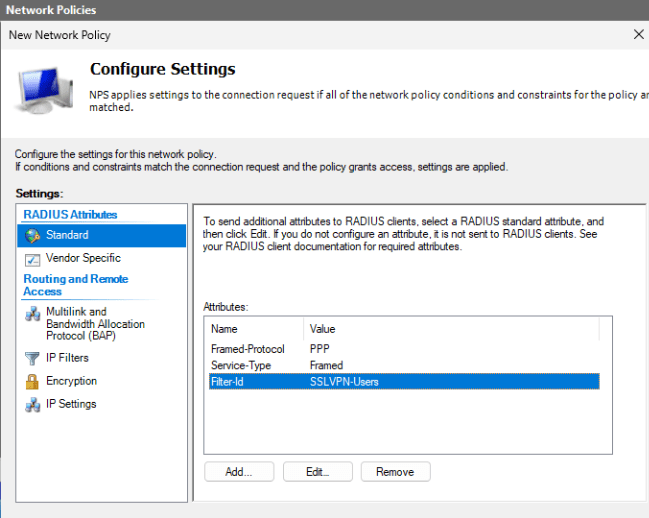
Important:
- The Filter‑Id must match exactly the group name configured in the Firebox IKEv2 settings
- It is case‑sensitive
- Default Firebox group name is SSLVPN-Users
Finish the wizard
Configure RADIUS on the Firebox
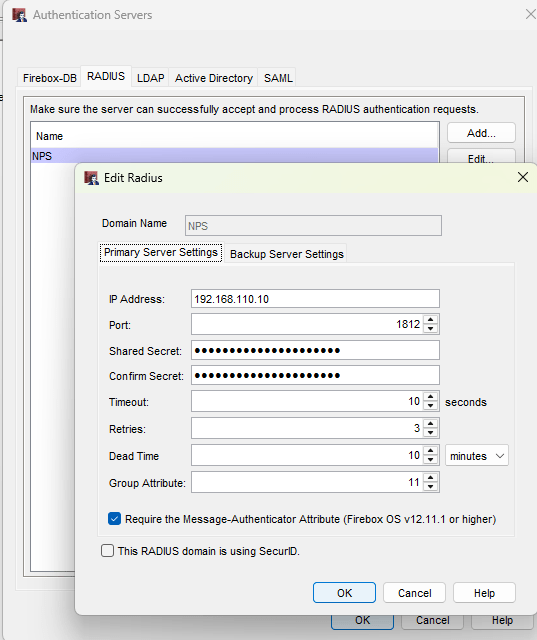
In Authentication → Servers → RADIUS:
- Domain name: Any label name
- IP address: NPS server IP
- Shared Secret: Same as in NPS
- Leave other settings at default
Configure IKEv2 to Use RADIUS
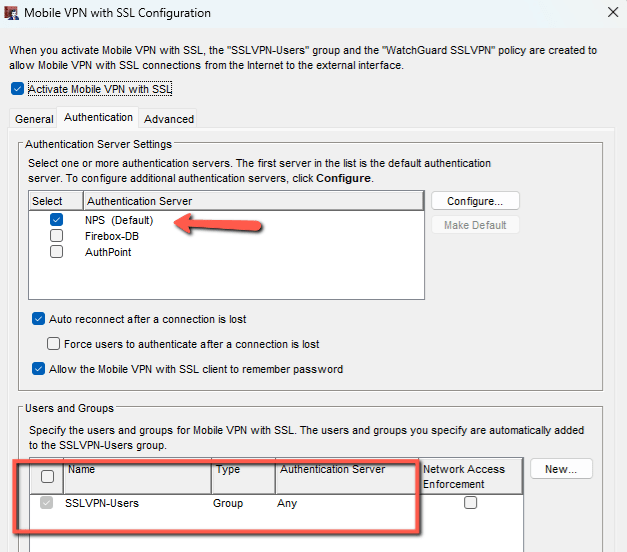
In VPN → Mobile VPN → SSLVPN → Authentication:
- Select the RADIUS server you created
- Ensure the Group Name matches the NPS Filter‑Id (e.g., SSLVPN-Users)
How Radius Authentication Works
- The SSLVPN client connects to the Firebox
- Firebox sends the username/password to NPS via RADIUS
- NPS validates the user against Active Directory
- If authentication succeeds, NPS sends back:
- Access‑Accept
- Filter‑Id = SSLVPN-Users
- Firebox applies the matching SSLVPN group policy and firewall rules